Notify Anywhere Documentation
Comprehensive guide to using Notify Anywhere on monday.com
Introduction
Overview of Notify Anywhere
Notify Anywhere is a powerful monday.com app designed to send notifications to multiple messaging platforms such as Discord, Slack, Telegram and Whatsapp. It enhances your workflow by ensuring that critical updates and communications reach your team across different platforms seamlessly.
Key Features
- Multi-Platform Support: Send notifications to Discord, Slack, Telegram, Whatsapp and more.
- Customizable Notifications: Tailor your notifications to suit different platforms and audiences.
- Real-Time Updates: Instant delivery of notifications for timely communication.
- User-Friendly Interface: Easy-to-use interface for seamless setup and management within monday.com.
Installation
Prerequisites
- An active monday.com account
- Accounts on the desired messaging platforms (Discord, Slack, Telegram, Whatsapp, etc.)
Installation Steps
- Go to the monday.com Apps Marketplace.
- Search for "Notify Anywhere" and click on the app.
- Click "Install" and follow the prompts to add the app to your monday.com account.
- Once installed, you can access Notify Anywhere from the monday.com workspace.
Getting Started
Setting Up Your Account
-
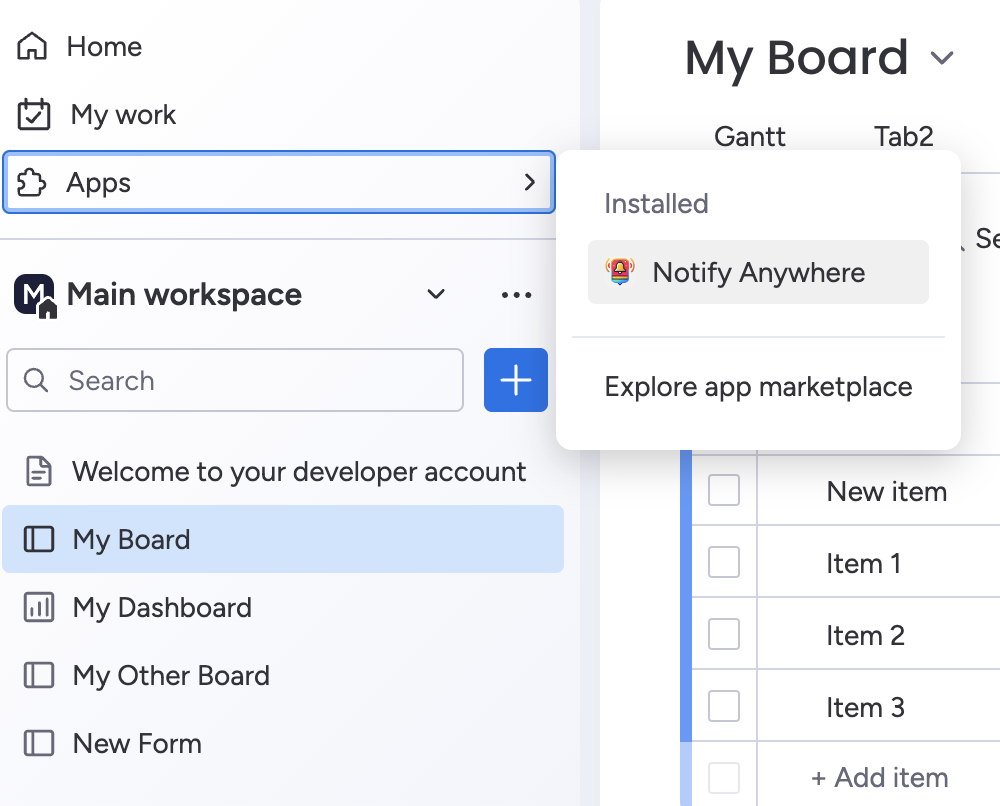
Open monday.com and navigate to Notify Anywhere in your installed apps.
-
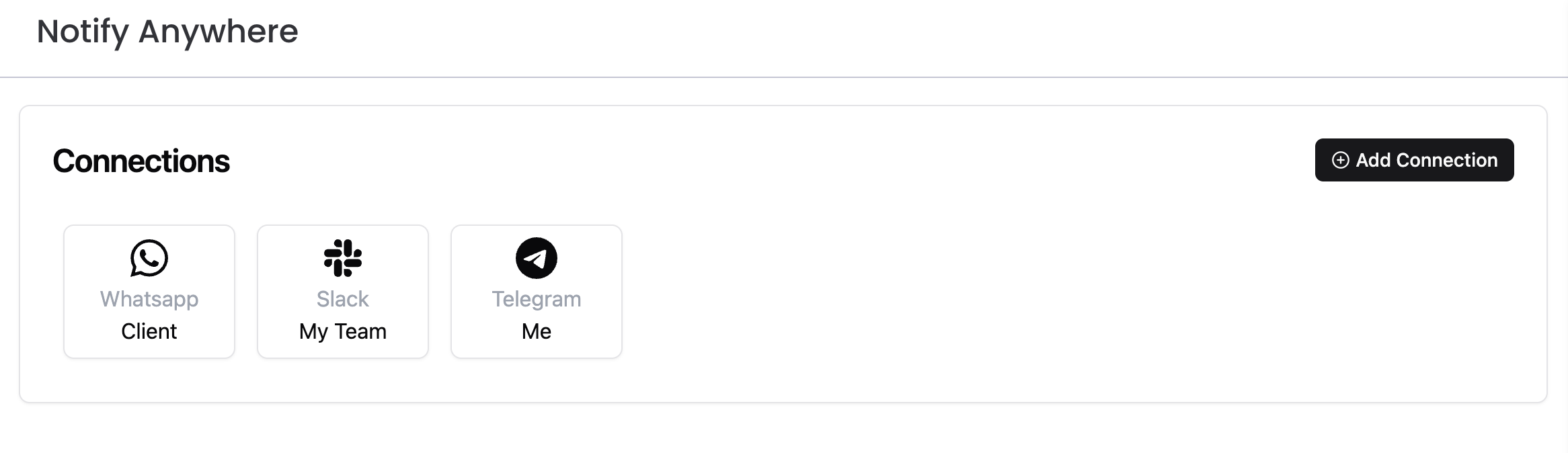
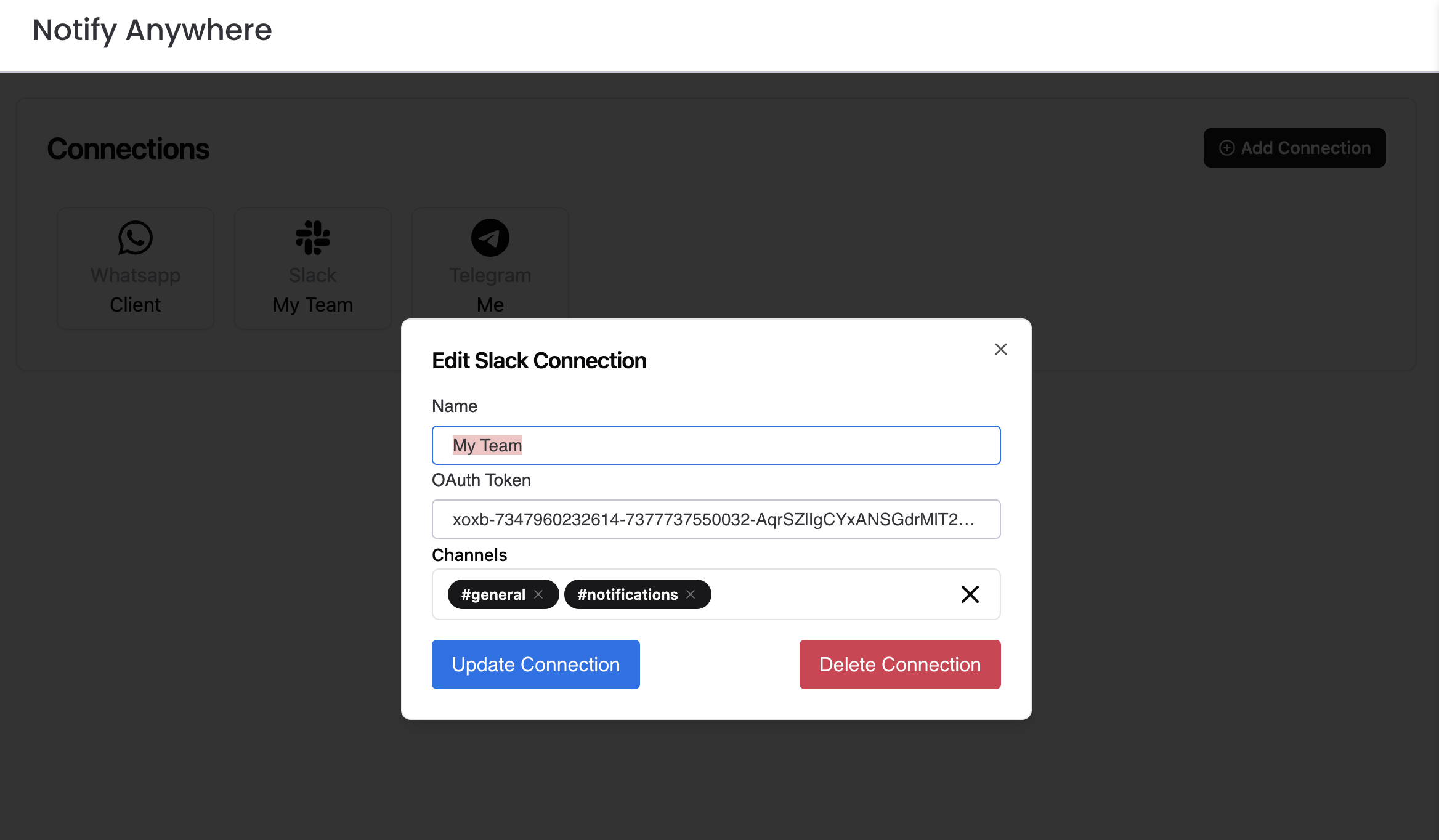
Link your accounts on Discord, Slack, Telegram or Whatsapp by following the prompts.
-
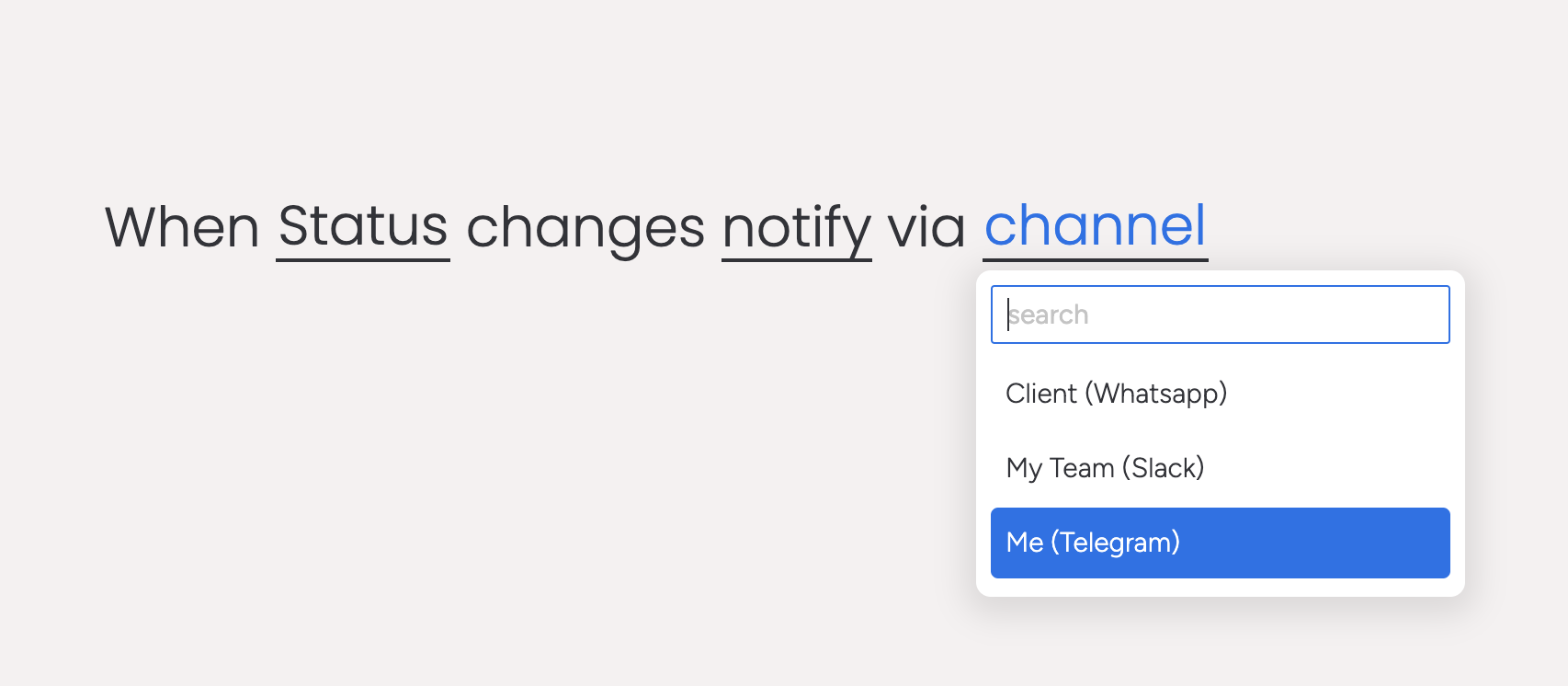
Once you have connected your accounts, go to monday.com automations and select any Notify Anywhere recipe or action
Connections Setup
Discord Setup
- Add a connection by clicking the "Add Connection" button
- Go through Discord's wizard
- Once it completes, you'll get assigned a channel automatically (usually the #general channel)
- You can select your desired target channels in the app dashboard
Slack Setup
- Add a connection by clicking the "Add Connection" button
- Go through Slacks's wizard
- When completed, add the bot to any channel by mentioning it with @NotifyAnywhere
- You can select your desired target channels in the app dashboard
Telegram Setup
- Go to https://t.me/userinfobot and send /start, you should get a message back with your id along with some more info
- Go to https://t.me/NotifyAnywhereBot and send /start. This will allow our messages to reach you, otherwise they'll get blocked by Telegram.
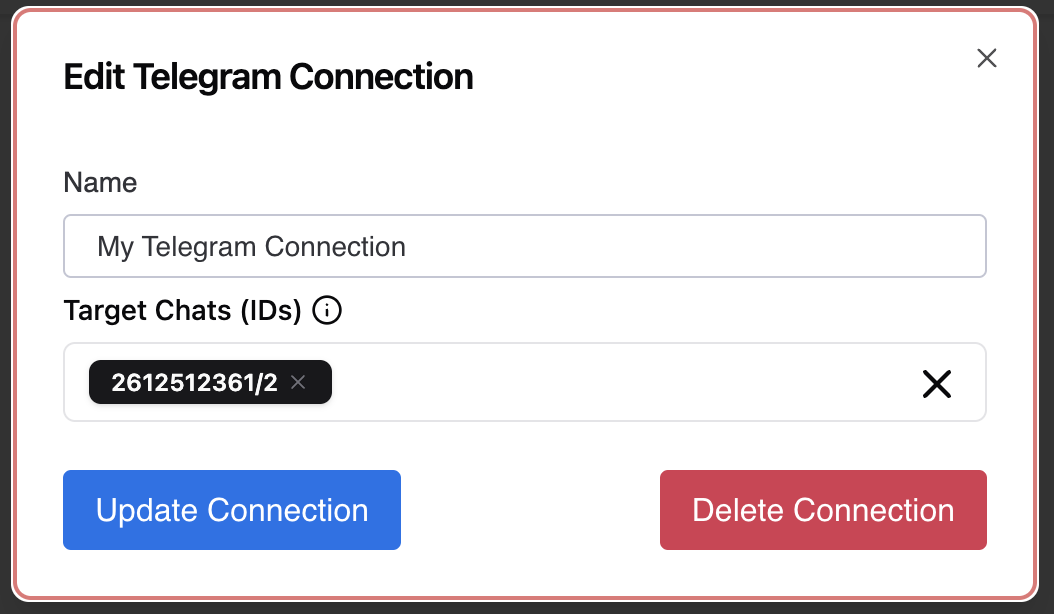
- Create a connection in the app dashboard and use the id you received in step 1 as the target ID.
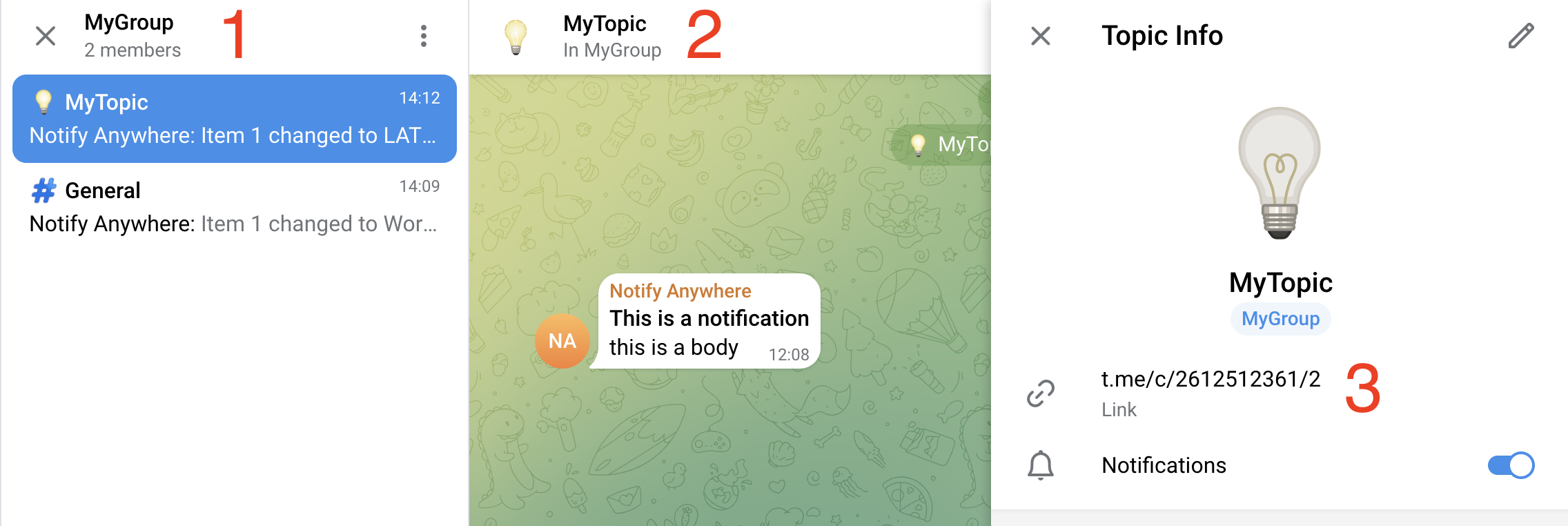
If you need to set up Telegram for groups, follow these steps
- Add the https://t.me/NotifyAnywhereBot to your Telegram group
- Go to your topic details and copy the topic link
- Create a connection in the app dashboard and use the last part of the link as the id. Eg: t.me/c/2612512361/2
Whatsapp Setup
- Add a connection by clicking the "Add Connection" button
- Use your phone number in an E.164 format as the Target Numbers